Onboarding - Mobile (No-Code IDE)
When you select Mobile testing during signup, DevAssure activates IDE Mode.
This is an Desktop IDE designed for recording and automating complex UI flows across Web, API and Mobile platforms without writing code.
What You Can Do
- Record & Playback: Capture manual interactions and turn them into automated test scripts.
- Cross-Platform: Automate Android, iOS, API and Web UI within a single interface.
- Advanced Validations: Perform AI-powered visual regression and accessibility testing.
Download & Install the IDE
To begin, you must install the desktop application on your local machine.
- Visit the DevAssure Downloads page.
- Select the installer for your OS: Windows, macOS (Intel or Apple Silicon), or Linux.
- Run the installer and follow the on-screen prompts.
- Launch the application and sign in using your verified DevAssure credentials.
If you are on a restricted corporate network, please ensure your IT team has whitelisted DevAssure domains to allow for updates and cloud synchronization.
Free Trial Activation
-
A 10-day free trial is activated automatically upon signup.
-
Explore all premium features:
- AI-powered test case generation
- Web, Mobile, API automation
- Visual & accessibility testing
- Integrations with JIRA, Figma, and more
- By default, the free trial includes 2 licenses.
After the trial, choose a subscription plan that best fits your needs.
Invite Users
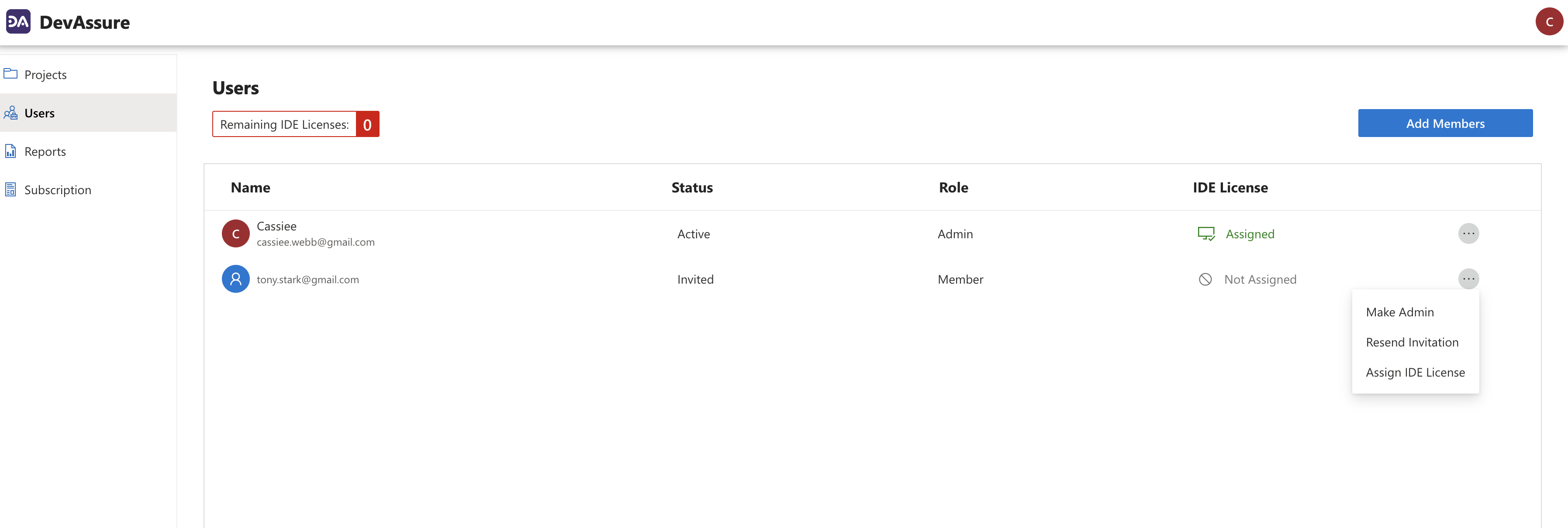
The Users menu in the organization homepage allows users to be added to the organization and provides information on the available licenses.
To add a user:
- Click on the Add Members button.
- Invite multiple users to your organization by entering your users' email addresses under Add member.
- All Users are listed in the Users page with the respective status, role, and the license information.
- To automatically include users from your email domain to be a part of the organization, click on the setting icons and enable the option.
To assign a user license:
- Select the user, click on more actions
 and select Assign IDE License.
 - The IDE license will be updated as Assigned.
You are now ready to start using DevAssure to accelerate your development process and ensure high-quality code.