Test Automation in VS Code - The Developer's Power Workflow

You write code in VS Code. You debug in VS Code. You review PRs (Pull Requests) in VS Code. So why should you leave VS Code every time you need to run a test?
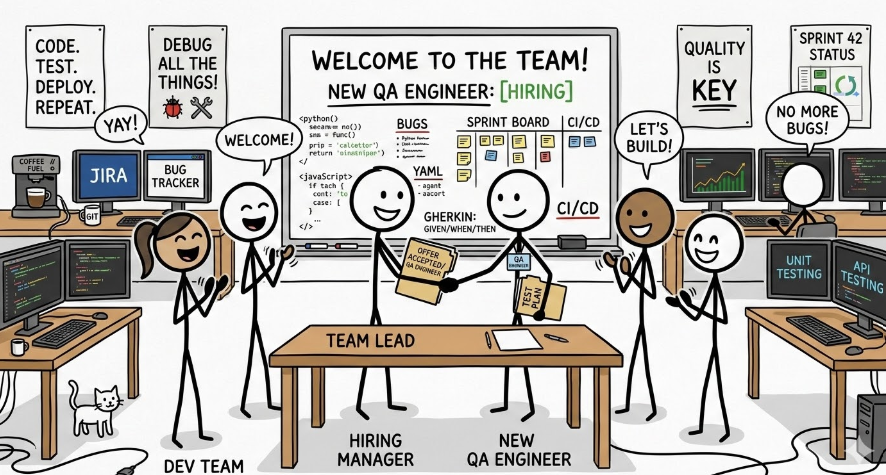
Most of the time, developers treat testing as something that happens somewhere else.
- In a separate tool or spreadsheet where the test cases are maintained.
- In a separate repository where the test automation framework is developed and test scripts are written.
- In a separate QA infrastructure or tool hosted on the cloud.
That mental context switch is quite expensive. Every time you alt-tab out of your editor to check if something broke, you lose the thread. You lose flow. And increasingly, you lose time your team can't afford.
This blog focuses on how DevAssure’s VS Code extension can be used by developers so that they would not have to switch context.
Studies consistently show that developers lose 23+ minutes of productive focus time after a single context switch. Keeping tests inside the editor isn't just a convenience — it's a productivity multiplier.
Why IDE-Native Testing Is a Game Changer for Developers
Let's be honest: most developers don't hate testing. They hate the friction around testing. The context switches. The learning curve of yet another tool. The brittle scripts that break every time a UI component gets renamed.
IDE-native testing removes that friction at the source. When your test environment lives in the same window as your code, three things happen naturally:
Instant Feedback Loops
When you code a feature and immediately run a test against it — with the same IDE, with a single click — you catch bugs while developing the feature. Not hours later in CI. Not days later in QA. Right then, when the logic is still fresh.
This is the real promise of shift-left testing: not just moving tests earlier in the pipeline, but making them so frictionless that developers actually run them as part of coding, not as a separate task after coding.
No More Tool Sprawl
The average engineering team in 2025 uses 15–20 different tools across their development lifecycle. Every additional tool is another login, another configuration file, another onboarding requirement for new team members.
Consolidating testing into VS Code reduces cognitive overhead and makes quality accessible to every developer on the team.
Learning another tool also implies learning a new way to code (even for no code tools — you still have to learn the keywords, or the templates). Of course there are coding agents that could help you generate the code or with auto completions — but you still have to learn.
So the real question is:
“How can you make the testing tool accessible for everyone without having to learn a new tool or having to move away from your dev workspace?”
Tests That Stay in Sync with Your Code
Traditional test automation frameworks decouple tests from code. The test lives in a separate repo, a separate file structure, maintained by a separate team.
When the code changes, the tests break — and nobody finds out until the CI pipeline screams at 2 AM.
Installing the DevAssure VS Code Extension
Getting DevAssure's AI testing agent running inside VS Code takes under five minutes. Here's the complete setup:
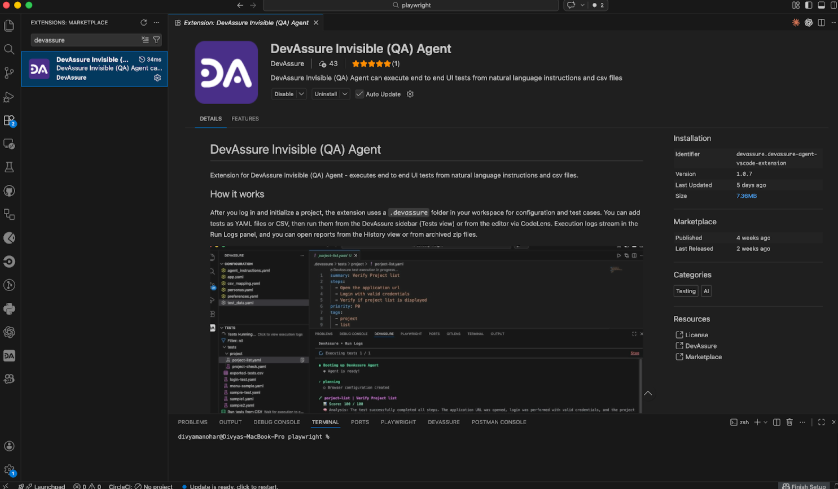
Step 1: Install from the VS Code Marketplace
Open VS Code, navigate to the Extensions panel (⌘+Shift+X on Mac, Ctrl+Shift+X on Windows/Linux), and search for "DevAssure".
Click Install on the DevAssure Agent extension.
Step 2: Sign In to Your DevAssure Account
After installation, click the DevAssure icon in the Activity Bar (left sidebar).
You'll be prompted to sign in to your DevAssure account. If you don't have one, the extension links you directly to a free 5-day trial — no credit card required.
As part of the trial, you will be able to execute a limited number of tests. If you’d like to get more credits you can reach out to [email protected].
Step 3: Train the Agent
You will now have to initialise and set up the agent so that it understands your application to test it effectively.
You will be asked to enter your application URL and information and your app persona details. Post this a few files will be generated which can be constantly modified and tuned to your application.
Step 4: Run Your First Test
That's it for setup.
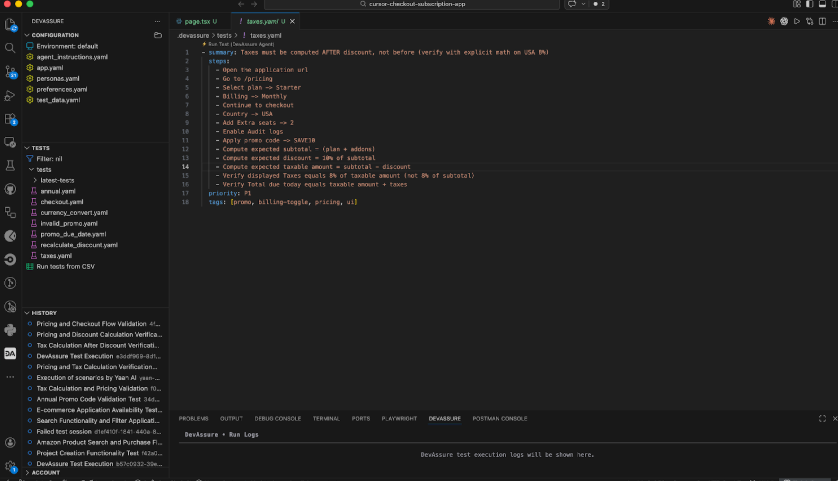
On the left panel you will be able to see a “play” button to execute the tests. The agent will automatically navigate your application, understand its structure, and begin executing test scenarios — outputting results directly in the VS Code Output panel.
Writing Tests in Plain English from Inside VS Code
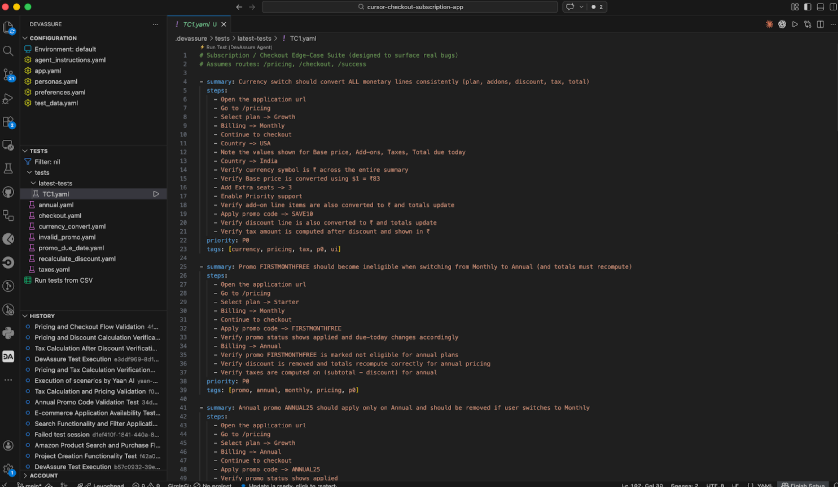
This is where DevAssure fundamentally changes the developer testing experience. You don't write test code. You write test descriptions - in plain English - and the AI agent converts them into executable, self-maintaining test flows.
DevAssure uses a simple YAML file to define test scenarios. You create this file inside your project (typically at .devassure/tests/feature.yaml), and it lives alongside your code like any other configuration:
Adding Custom Tools
That would be the icing on the cake, wouldn't it?
One of the problems with every testing tool I have seen is that customization is either not possible or minimally possible or needs to be done in a specific way following a specific template. In this AI era, are such boundaries acceptable?
There are built-in libraries included within the package, details can be found here - https://www.npmjs.com/package/@devassure/cli
If you would like to include your own custom tools you need to create .devassure/tools/index.yaml
Tools can run any command or program. There are absolutely no restrictions on the coding language or the libraries you need to install. For custom code or scripts, put the tool code inside the .devassure/tools folder and reference the execution command in tools/index.yaml
Sample YAML
tools:
  - name: "getProjectDetails"
    description: "Get project details from api"
    cwd: "api-tools"
    args:
      - name: projectId
        type: string
    exec: npm run getProjectDetails ${projectId}
Conclusion
Modern software development is all about speed, reliability, and maintaining developer focus. Yet traditional testing workflows often pull developers away from the very environment where they are most productive — their IDE. Every context switch between coding and testing tools slows down feedback loops and interrupts the developer’s flow.
By bringing testing directly into the editor, IDE-native solutions like the DevAssure VS Code extension fundamentally change the developer workflow. Developers can write code, define tests in plain English, execute them instantly, and view results — all without leaving VS Code. This dramatically reduces friction and encourages developers to run tests continuously while building features.
More importantly, AI-powered automation ensures that tests remain resilient and self-maintaining even as applications evolve. Instead of managing brittle scripts or maintaining separate automation frameworks, developers can focus on what truly matters: building high-quality software.
As engineering teams continue to embrace shift-left testing and faster release cycles, integrating testing directly into the developer workflow will become the new standard. And with tools like DevAssure, running intelligent, AI-driven tests inside VS Code is no longer a future concept — it’s something developers can start doing today.